
Which free 3D modelling software should you learn first for 3D printing?
Which free 3D modelling software to learn first for 3D printing: Tinkercad, Onshape, Fusion, FreeCAD, Blender and SketchUp compared, and what to do after.
On this page
- Free 3D modelling software compared
- Tinkercad: the gentlest start
- Onshape: free, in the browser, exact sizes
- Fusion: free for hobby use only
- FreeCAD: no account, no paywall
- Blender: for shapes drawn by eye
- SketchUp Free: rooms and furniture
- After the model: the slicer
- Learn it with us
- Where these facts come from
- Frequently asked
Which free software should you learn first?
Say what you want to make, and you get the program this guide would start with.
Start with Tinkercad if you want a simple shape printed this week. Start with Onshape if you want parts that fit each other to an exact size, and leave Blender for sculpted shapes. All six programs below cost nothing to begin, but several come with strings, so read each maker’s terms before you use one for paid work.
Free 3D modelling software compared
| Program | Cost | Where it runs | Best for | How steep |
|---|---|---|---|---|
| Tinkercad | Free | In your browser | Simple shapes, signs, first prints | Gentle |
| Onshape (free plan) | Free, but your designs are public | In your browser | Parts with exact sizes that fit together | Moderate |
| Fusion (personal use) | Free for hobby use only, with limits | Installed on your computer | Exact-size parts, with more tools than you need | Moderate to steep |
| FreeCAD | Free and open source | Installed on your computer | Exact-size parts, if you dislike accounts | Steep |
| SketchUp Free | Free, but check the maker’s terms | In your browser | Rooms, furniture and buildings | Moderate |
| Blender | Free and open source | Installed on your computer | Sculpted shapes, figures and scenes | Steep |
The “how steep” column is our own judgement, not a measured figure. CAD stands for computer-aided design: drawing a part with sizes you can change later.
Tinkercad: the gentlest start
Tinkercad is a free online 3D modelling program that runs in a web browser. You build a model from basic shapes, each one either solid or a hole, and combine them. It exports STL or OBJ files, ready for printing.
It suits name tags, stands, simple boxes and a child’s first model. Its limit is the exact fit: a lid that must sit on a base to a fraction of a millimetre is easier in a CAD program with dimensions.
Onshape: free, in the browser, exact sizes
Onshape is a full CAD program with a no-cost plan for makers, hobbyists and people learning CAD. It runs in the browser, and its page lists PC, Mac, Linux, Chrome, iPad, iPhone and Android.
The catch is on that page: the free plan is for non-commercial designs that are open-source and public online. Anyone can see what you draw. It is a good place to learn proper CAD, where every part is built from sketches with sizes, and a poor one for a client’s unreleased product.
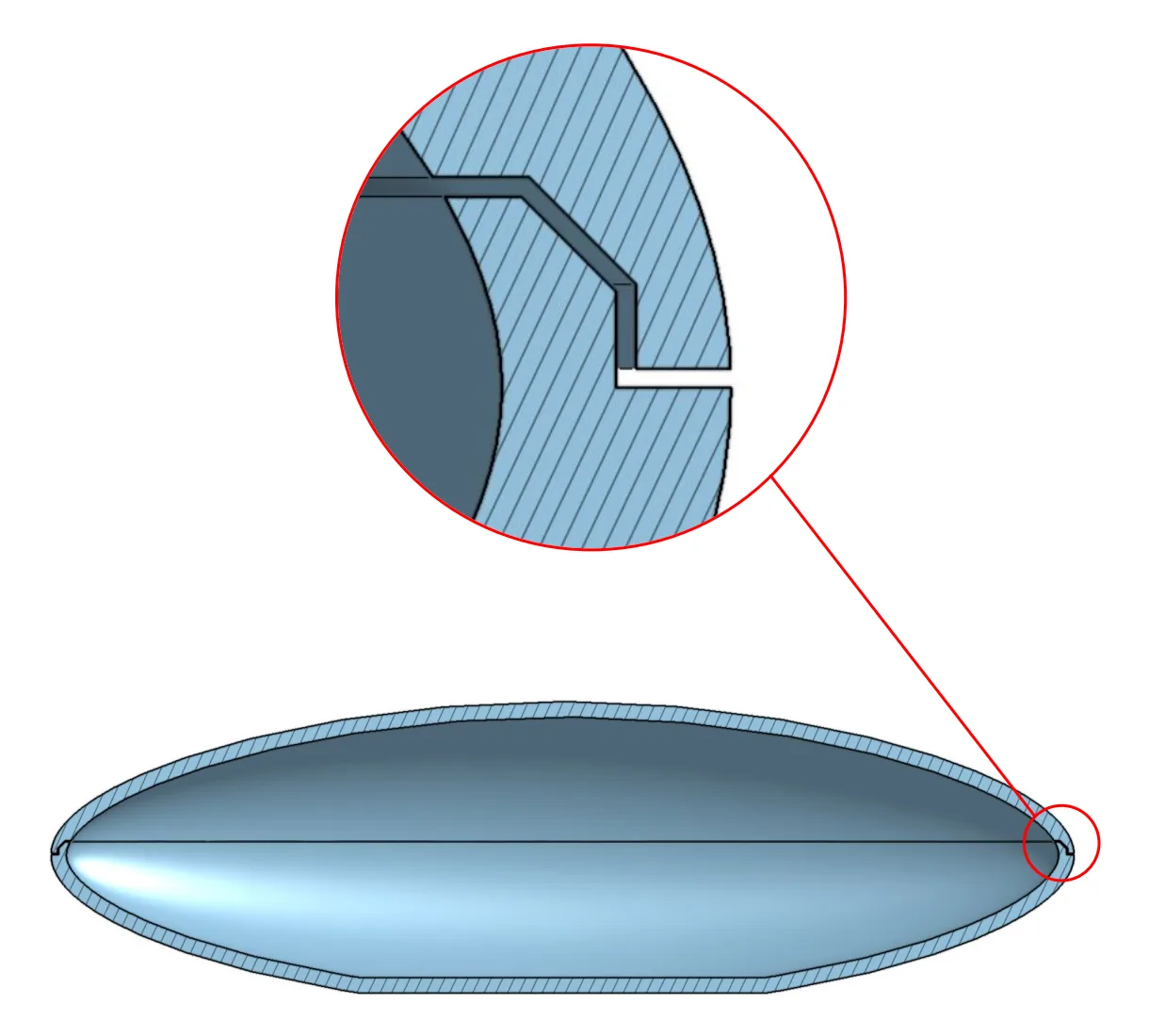
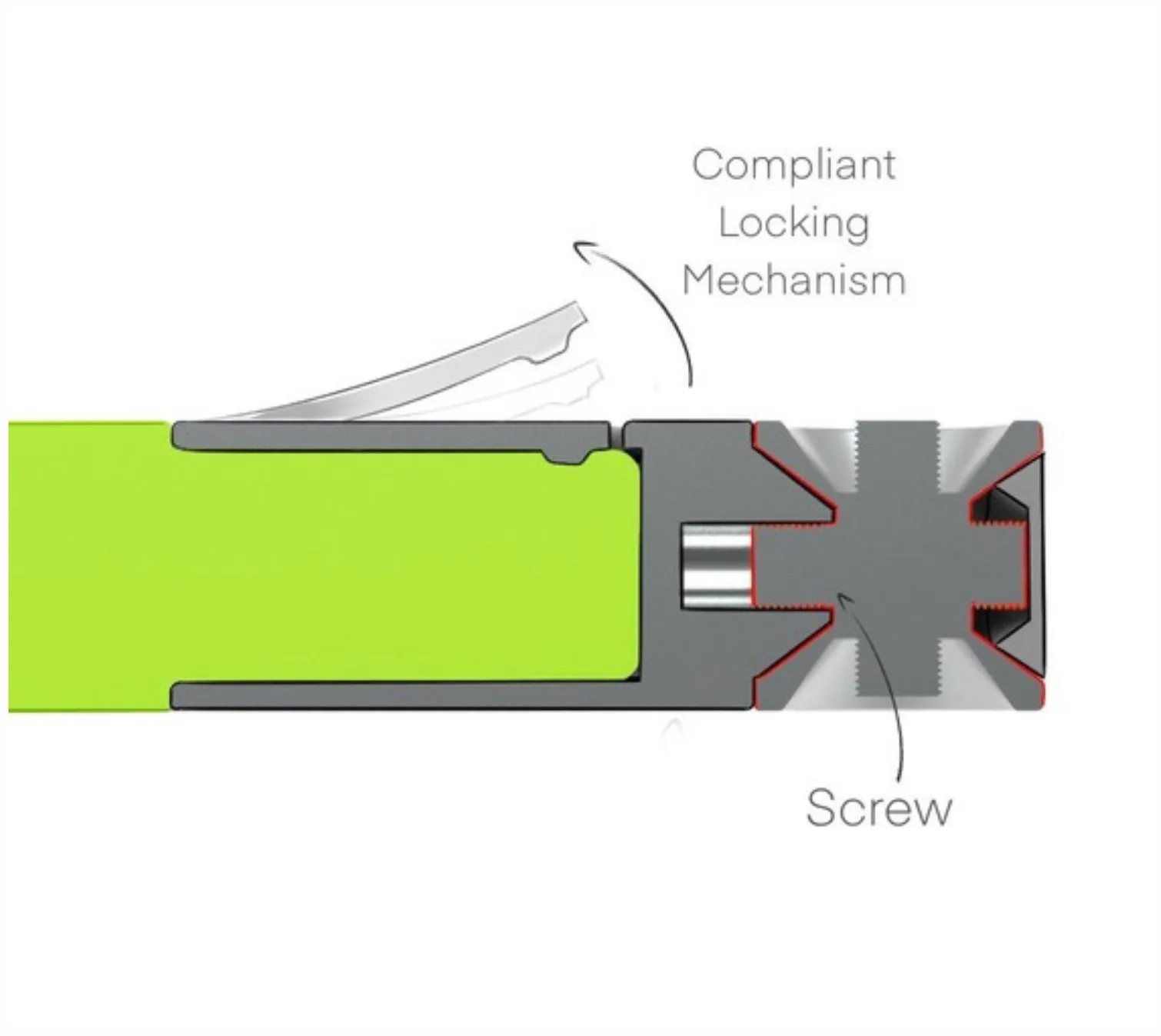
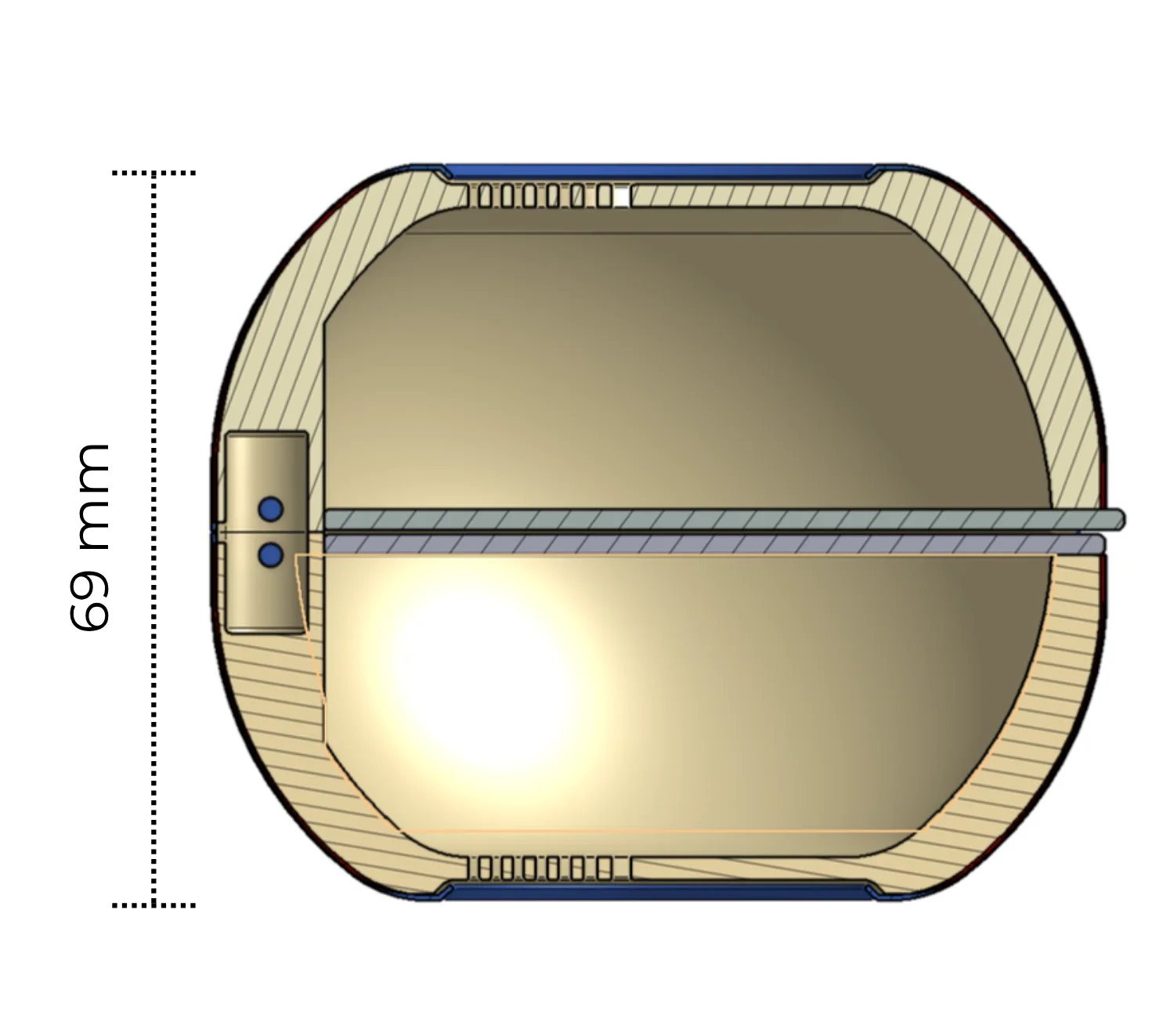
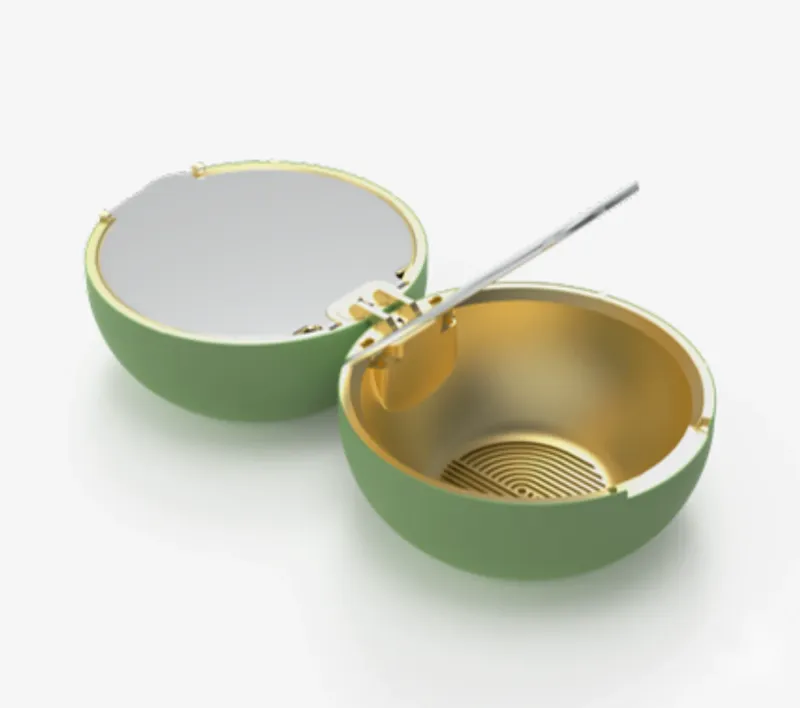
A part that must fit another part is easier to get right when you can cut it open on screen and see how the pieces meet. These two sections are from our own design projects.
Fusion: free for hobby use only
Fusion is Autodesk’s CAD program. Its personal-use version is for home-based, non-commercial projects, limited to 10 active, editable documents. Autodesk’s page still calls the program Fusion 360.
Choose it if you want one program you can grow into. The limits are the licence and the number of live documents. The page also says a hobbyist must earn under 1,000 US dollars a year from it. It does not agree with itself on how long the free term lasts: Autodesk’s pages say 1 year in places and 3 years in others. Check Autodesk’s page for Singapore before you rely on either figure.
FreeCAD: no account, no paywall
FreeCAD is an open-source parametric 3D modeller. Parametric means you can go back into the model’s history and change a number, and the part updates. It runs on Windows, Mac and Linux, and its own site says there is no sign-up, no paywall and no restrictions.
Choose it when you want exact parts and no licence to worry about. The price is a program that looks less friendly than the browser ones. It reads and writes STEP and STL.
Blender: for shapes drawn by eye
Blender is a free, open-source 3D suite that covers modelling, animation, simulation, rendering and video editing. Most of that has nothing to do with printing.
It is made for figures, creatures and decorative shapes, and it is a harder route to a bracket with a hole of an exact size. Check that the finished model is a closed shape before you export it: why a 3D file won’t slice shows how.
SketchUp Free: rooms and furniture
SketchUp Free runs in a browser and exports STL, among other formats. It imports SKP, JPG and PNG. Its own page quotes an architect and links a story about bespoke furniture, and that is where it feels at home: rooms, furniture and buildings. The page does not say who may use the free version for paid work, so check the maker’s terms first.
It is a fair choice for a scale model of a house. It is a slower route to a mechanical part with tight fits.
After the model: the slicer
A slicer is the program that turns your model into printer instructions. It converts an STL file into G-code, the printer’s own commands (see what G-code is). Several are free, including PrusaSlicer and UltiMaker Cura.
You need one only for a printer you own. If you send the file to us through the quote, a person checks it before it prints. Our guide to STL files covers what to export. Another route is a model you did not draw: see where to find free 3D files, or turn a picture into a model with image to 3D.
Learn it with us
Our CAD Fundamentals course teaches Onshape in 3 hours: sketches, dimensions, extrudes and fillets, then your first part, sliced and printed. It needs no experience and runs on any laptop, since Onshape is in the browser. At the time of writing booking is not open, so you can register your interest.
If you would rather skip modelling, the Text to 3D course lets AI draw the first model, then teaches you to fix it so it prints.
Where these facts come from
Outside facts were read on 19 November 2026, on the maker’s own page wherever it could be read. Free plans and licence terms change often, so check the maker’s page before you rely on any of them.
- Tinkercad: its own home page says it is free. Its help pages did not load as plain text, so the browser use, solid and hole shapes and STL and OBJ export come from Wikipedia. Check Tinkercad’s help centre for current file types.
- Onshape: the Free Plan page and pricing page for who the plan is for, and its Terms of Use for the rule that Free Plan documents are public.
- Autodesk, Fusion for personal use: the 10-document limit, non-commercial use and the income limit, read on the UK and India versions of the page. The versions, and the UK page itself, differ on the length of the free term. The Singapore version could not be read.
- FreeCAD: parametric, platforms, file formats, no sign-up.
- Blender, manual introduction: free, open source, what it covers.
- SketchUp Free: browser, file types. The page gives no licence terms for the free version.
- Slicer on Wikipedia, PrusaSlicer and UltiMaker Cura: what a slicer does and that these two are free.
- What we accept and offer comes from our own pages: the CAD Fundamentals and Text to 3D courses and our file guide.
Frequently asked
Is Tinkercad good enough for 3D printing?
For simple shapes, yes. You build a model from solid and hole shapes, then export an STL (or OBJ) file. It gets awkward once a part needs an exact fit with another part, which is where Onshape, Fusion or FreeCAD take over.
Can I use Fusion for a small business?
Not on the personal-use licence. Autodesk limits it to home-based, non-commercial work and says a hobbyist must earn under 1,000 US dollars a year from it. Commercial use falls outside it, so ask Autodesk which licence you need.
Are my designs private on the free Onshape plan?
No. Onshape's free plan is meant for non-commercial designs that are open-source and public online. If a design must stay private, pick a different program or ask Onshape about its paid plans.
Can I model on a Chromebook or a tablet?
Yes, if the program runs in the browser. Onshape lists PC, Mac, Linux, Chrome, iPad, iPhone and Android, and Tinkercad and SketchUp Free also run in a browser. Fusion, FreeCAD and Blender are installed, so they need a proper computer.
What is the difference between CAD and Blender?
CAD programs such as FreeCAD are parametric: you can go back into the model's history and change a dimension. Blender is a wider 3D suite that also does animation and video, so it suits shapes drawn by eye, such as figures and creatures.
Do I need a slicer to order a print from you?
No. Send the model through the instant quote and a person checks it before it prints. You only need a slicer if you print on your own machine.
Which file should I export from my modelling software?
STL is the plain choice for a part printed as drawn. Send STEP if you want us to change the design, because a STEP file can be edited and an STL cannot. Export in millimetres either way, one part to a file.
I do not want to learn modelling at all. What then?
Send a sketch, a photo or the broken part and we model it for you. Or try the Text to 3D course, where AI makes the first model and you learn to fix it so it prints.
Related
-
 GuideWhat is an STL file, and how do you open one?
-
 GuideHow do you prepare a 3D model so it prints properly?
-
 GuideHow do you turn an image into a 3D model you can print?
-
 ServiceIndustrial 3D Printing
-
 Service3D Modelling, CAD and 3D Scanning
-
 ServiceProduct Development & Prototyping
-
 ProjectCompact powder case, designed for manufacture
-
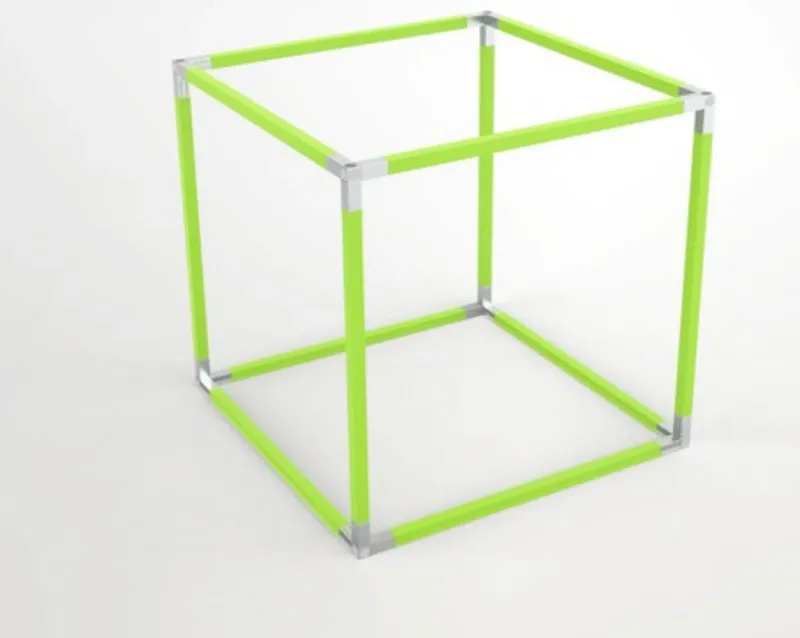 ProjectModular cube frame joint design for Vanguard Interiors
-
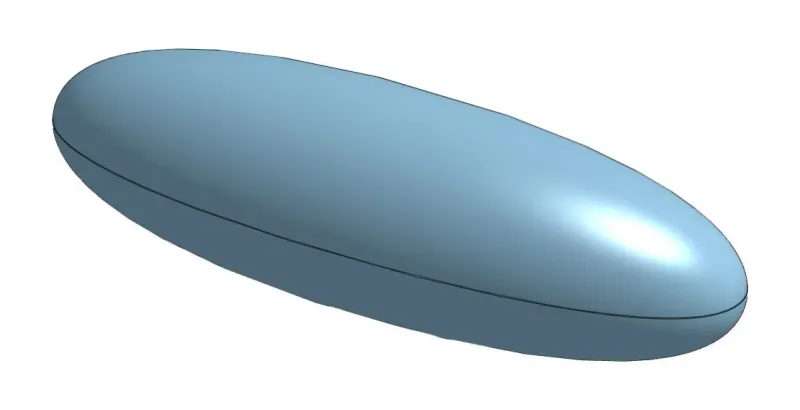 ProjectRice grain case, designed for manufacture