

How do I export and send a 3D file so it prints first time?
Updated
Send your 3D file as STL, 3MF, OBJ, STEP or IGES, exported in millimetres, one part to a file, through the instant quote (up to 1 GB) or by email (under 25 MB). Most quoting delays come down to the file, not the design: a wrong format, unclear units or ten parts merged into one STL, and we have to come back and ask before we can price it. Run through these five steps before you upload, and your quote comes back faster and more accurate.
1. Use the right format
- STL is the safe default for a part printed as drawn. Every printer and slicer reads it. To export STL, use Save As or Export in your CAD software and set the units to millimetres.
- STEP (.step, .stp) wins the STEP vs STL choice if you want us to review or edit the design before printing. A STEP file stores the exact curves and dimensions, so we can change it; an STL is a fixed mesh of small flat triangles, so we cannot refine it the way we can a STEP.
- IGES (.iges, .igs) works like STEP, for software that has no STEP export.
- 3MF, or OBJ with its texture zipped alongside, for parts that need to hold colour, since a plain STL carries shape only, no colour or material.
- Export native CAD (computer-aided design) files first. Rhino (.3dm), SolidWorks (.sldprt), Fusion (.f3d), SketchUp (.skp) and Blender (.blend) files must be saved as one of the five above, with Save As or Export in the same software.
The instant quote takes all five formats, and a zip of several.
2. Check your units before exporting
STL and OBJ files carry no unit information, only numbers, and we read every number as a millimetre. If your software exports in inches, the part arrives 25.4 times too small, because one inch is 25.4 mm: a 4-inch bracket comes in at 4 mm long.

- Set millimetres before you export. The unit setting is usually in the export dialog itself, not only in the drawing.
- Send 3MF, STEP or IGES if you work in inches. These formats record their units, so the size survives the trip.
- Write the overall size in your message or quote notes. “About 120 mm long” lets the person checking your file spot a scale error at a glance.
3. One file per part, not one file per assembly
If you’re printing several parts, keep each one as its own file rather than merging them into a single STEP or STL. A merged file can’t be priced, turned the best way up or coloured part by part, and if only one part needs a design tweak, we’d have to untangle it from the rest first.
- Several parts for one project: export each separately, then zip the folder and upload the zip.
- One part made of several bodies: join those bodies into one before you export, so it prints as one piece. Extra shells and overlapping bodies shows how.
- Parts that fit together: add a screenshot of the assembly, so we can see how they meet. Tolerances and clearances covers the gaps they need.
- Hardware going in? Embedding in 3D prints shows how to mark inserts and magnets.
4. Name files so we don’t have to guess
A folder of Part1.stl, Part2.stl and New Folder (3) slows down quoting on our end and reordering on yours. Use a pattern that carries the details a quote needs, ProjectName_DeskStand_Base_PLA_Black_x2.stl.

If the material or colour isn’t decided yet, write TBC in that place rather than dropping it, so the pattern stays the same across every file in the set.
5. Send it through
- Instant quote: up to 1 GB, with a price for the material and finish you pick.
- Email: fine under 25 MB, or to talk the job through first, at sales@additiveinn.com.
- Larger files (big assemblies, scan data): send a Google Drive, Dropbox or WeTransfer link by email.
- Confidential design? We keep your files private and can sign a non-disclosure agreement (NDA) on request.
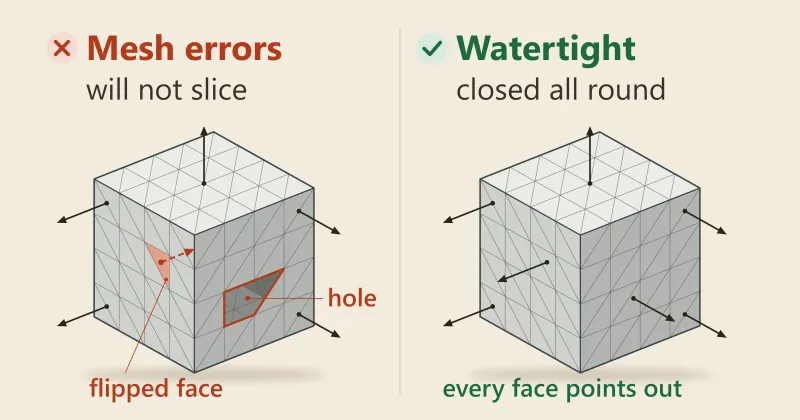
A person checks every file before it prints, and tells you about wrong units or features too small for the process before anything is made. If a file won’t slice, see why a 3D file won’t slice.
Frequently asked
What file format should I send for 3D printing?
Send STL, 3MF, OBJ, STEP or IGES: our instant quote takes all five, and a zip of several. STL is the plain choice for a part printed as drawn, 3MF keeps units and colours, and STEP is best if you want us to change the design, because a STEP file can be edited and an STL cannot.
Can I send a SolidWorks, Fusion, Rhino or SketchUp file directly?
No, a native CAD file must be exported first, to STEP, IGES, STL, 3MF or OBJ. Each CAD package saves its own format that other software cannot read reliably. Use Save As or Export, pick STEP if you have it, and set the units to millimetres before you save.
What units should my 3D file be in?
Export your 3D file in millimetres. An STL or OBJ file stores only numbers, with no unit, so we read every number as a millimetre. A 3MF, STEP or IGES file records its units, which makes it the safer choice if you work in inches. Either way, write the part's overall size in your message so a person can confirm it.
Why did my part come out 25.4 times too small?
A part 25.4 times too small was drawn in inches and read as millimetres, because one inch is 25.4 mm. A 4-inch part arrives 4 mm long. Export again in millimetres, or scale the model up by 25.4. The reverse, a part 25.4 times too big, happens when software that expects inches opens a millimetre file.
Should I send several parts as one file?
No, send each part as its own file and zip them together. A merged file cannot be priced, turned the best way up or coloured part by part. One part made of several bodies is the exception: join those bodies into one before you export, so it prints as one piece.
How should I name my 3D files?
Name each file with the project, part, material, colour and quantity, in that order: for example DeskStand_Base_PLA_Black_x2.stl. Use the same pattern across the set, and write TBC for anything not decided yet rather than leaving it out.
How do I export an STL file from my CAD software?
Use Save As or Export, choose STL, set the units to millimetres and pick the finest resolution on offer, so curves do not turn into flat facets. Export one STL per part. If the file will not slice afterwards, see why a 3D file won't slice for the fixes.
STEP or STL: which is better for 3D printing?
STL is the simple choice for a part that prints exactly as drawn, and STEP is better when you want a person to review or change the design. STEP stores exact curves and dimensions, while an STL is a fixed mesh of small flat triangles that cannot be edited cleanly. Our instant quote takes both.
How big a file can I send, and how do I send a large one?
The Additive Inn instant quote takes uploads up to 1 GB. Email works for files under 25 MB, sent to sales@additiveinn.com. Anything larger, such as a big assembly or scan data, goes as a Google Drive, Dropbox or WeTransfer link in an email, and we download it from there.
Do you keep my 3D files private?
Yes, Additive Inn keeps customers' files private and uses them only for their order. If your design is confidential, we can sign a non-disclosure agreement (NDA) on request.
Can you check or fix my file before it prints?
Yes, a person checks every file before it prints and tells you about wrong units, a file that will not slice or features too small for the process. If the model needs more than a tweak, our design service can redraw it, or build one from a sketch or a sample if you have no file.
Related
-
 GuideWhy won't my 3D file slice, and how do I fix it?
 -
 GuideHow do you prepare a 3D model so it prints properly?
 -
 GuideHow does the instant 3D printing quote work, and is the price final?
 -
 ServiceIndustrial 3D Printing
 -
 ServiceConcept to Fabrication
 -
 ServiceProduct Development & Prototyping
 -
 Project3D printed electronics enclosure (FDM)
 -
 ProjectWet lens adapter for an action camera dive housing
 -
 ProjectFlow meter panel mount for Bencontrol Technologies