Laser cutting file types, explained
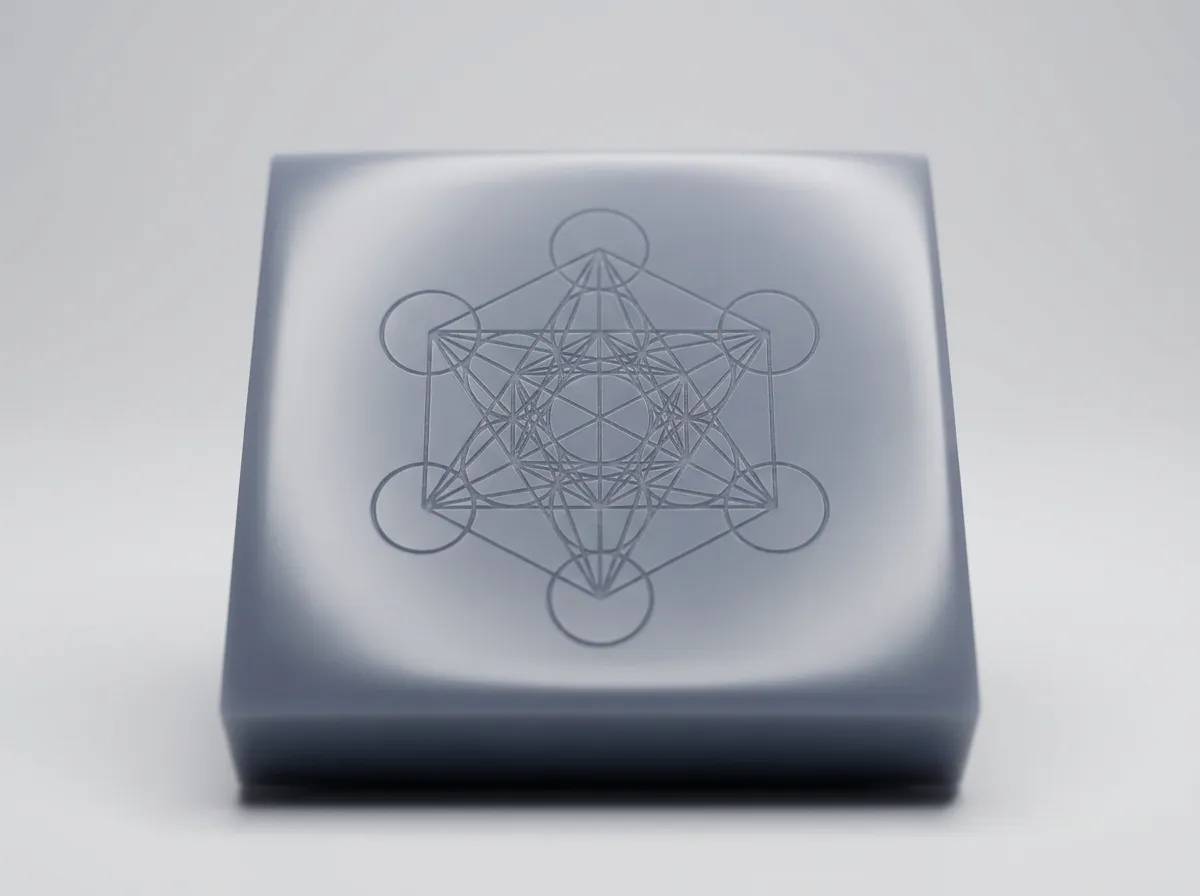
Upload the right file and our laser tool prices your job in seconds. Upload the wrong one and it quotes only the engraving, redraws your shape as a silhouette, or finds nothing to cut. Here’s how to send the right one, in plain English, no design degree needed.
Vector vs raster: the one thing that matters
A laser cuts by following lines, so your file has to contain real lines.
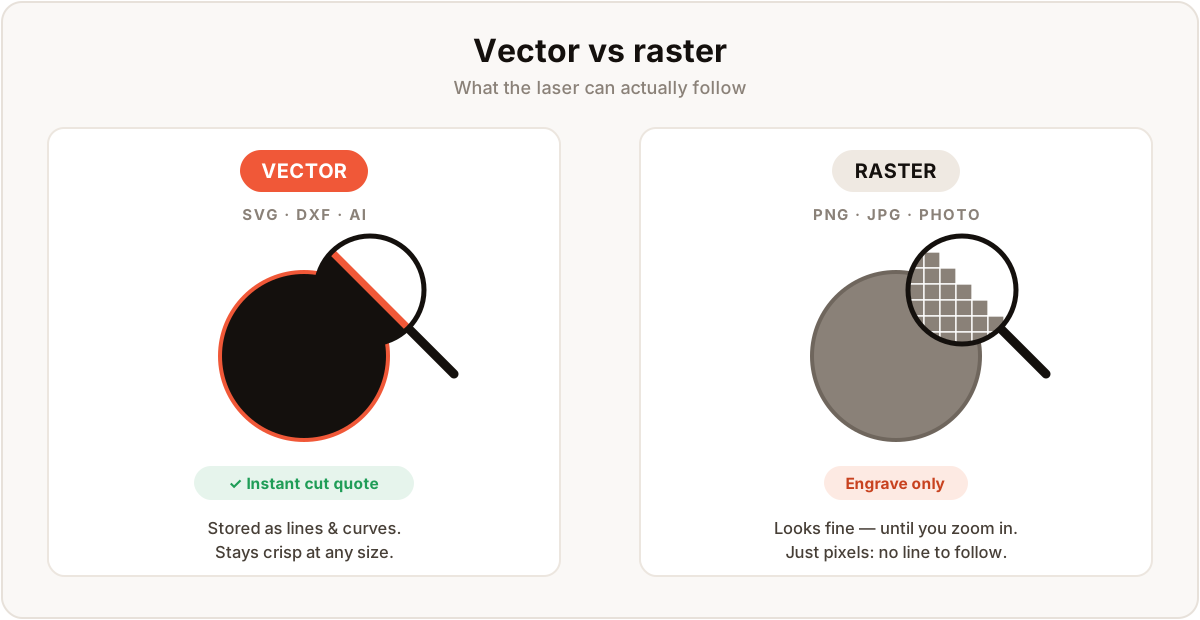
- Vector (SVG, DXF, often AI or PDF) stores your design as lines and curves. The laser follows them exactly, at any size, so you get an instant price.
- Raster (PNG, JPG, screenshots, photos) is a grid of pixels. There’s no line to follow, so it can only be engraved as shaded art, or traced into vector first.
| Vector (SVG, DXF) | Raster (PNG, JPG, photos) | |
|---|---|---|
| Made of | Lines and curves | A grid of pixels |
| Scales without blur | Yes | No, goes fuzzy when enlarged |
| Instant cut quote | Yes | No |
| Good for | Cutting and clean engraving | Engraving shaded images only |
| Typical source | Illustrator, Inkscape, Figma, CAD | Phone camera, screenshot, web download |
If you remember one line from this page: send a vector file for anything you want cut out.
Fills vs outlines: why a solid black logo confuses the laser
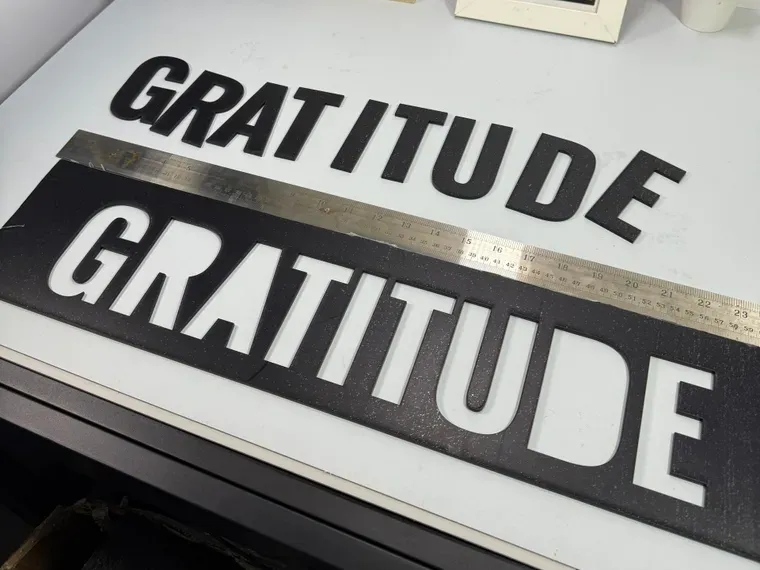
Here’s the one that trips most people up. A filled black logo is a solid area of colour, not a line, so the laser has nothing of its own to follow.
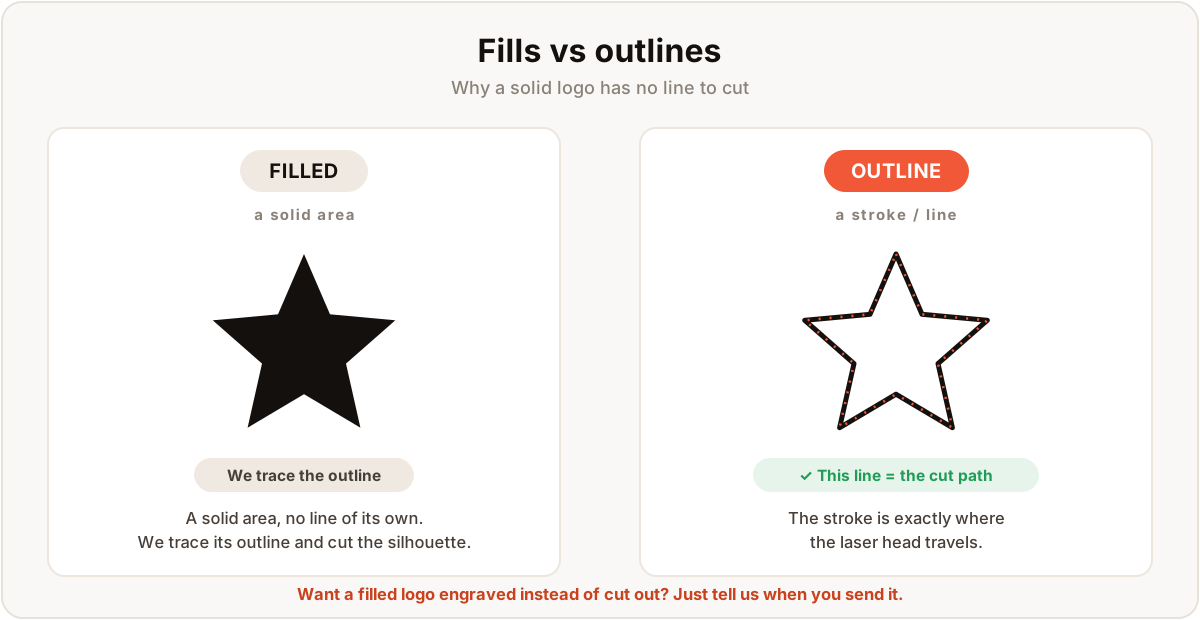
Our tool fixes this automatically: it traces the outline and cuts the silhouette, so a solid star becomes a star cut from the material. Perfect for keychains, signage letters and ornaments.
Want it engraved onto something instead of cut out, like a tumbler, plaque or award? Just say so when you send the file, and see what we can mark on our laser engraving page. (No vector at all? We can vectorise your image as a small paid add-on, see below.)
Colours: black cuts, red engraves
Two stroke colours tell the laser what to do, and it comes down to depth:
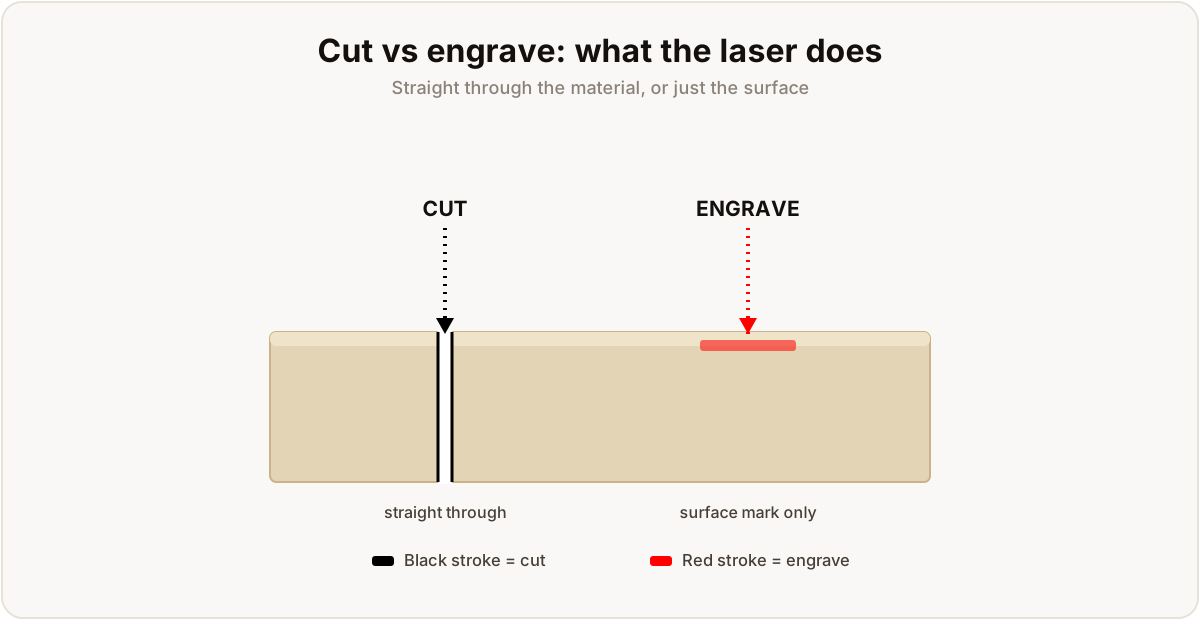
- Black stroke = cut: straight through the material.
- Red stroke = engrave: marks the surface only.
Set those two colours and your quote comes back already split into cut and engrave paths. Here’s the same convention on a real design:
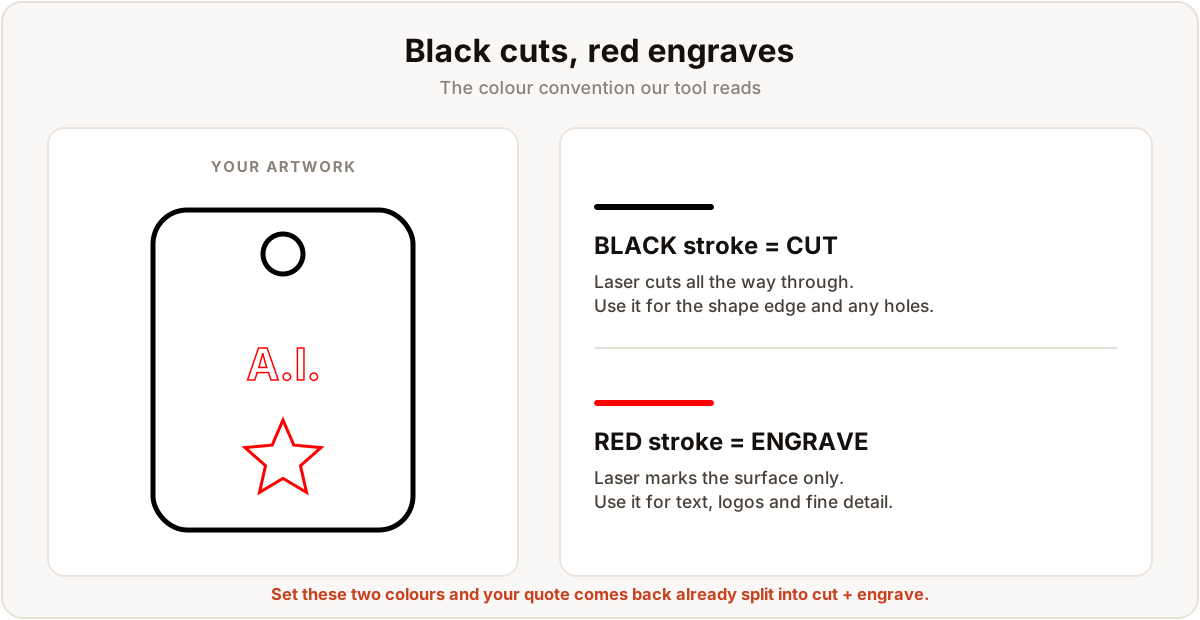
Used other colours? We’ll confirm with you before running.
Setting stroke colour in common tools
- Illustrator: give the shape a stroke, set it to pure black (
000000) for cut or pure red (FF0000) for engrave. Any thickness; we read the colour, not the weight. - Inkscape: Object → Fill and Stroke: fill off, stroke on, black or red. Save as Plain SVG.
- Figma / Canva: fine for design, fiddly for laser; they tend to export fills and PNGs. Export the cleanest SVG you can; if it still needs work, we’ll flag it (and any file-prep cost) when we quote.
Exporting a clean SVG in millimetres
A laser bed works in millimetres, but many tools export SVGs in pixels, and 100 px is not 100 mm. Get it wrong and your part comes in at the wrong size.
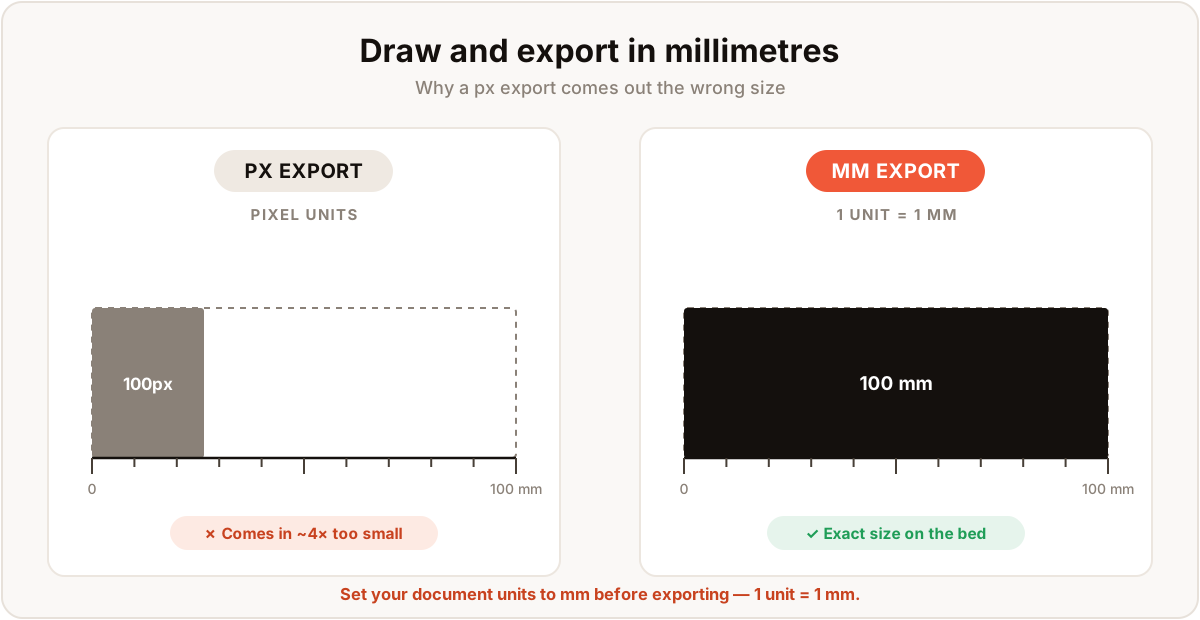
- Set document units to mm before you draw.
- Size artwork to the real finished dimensions (a 60 mm coaster is 60 mm on the canvas).
- Export as SVG in mm.
- Size looks off in the quote? Tell us the real dimensions and we’ll rescale.
DXF from CAD is already in real-world units, ideal for anything dimensional or mechanical.
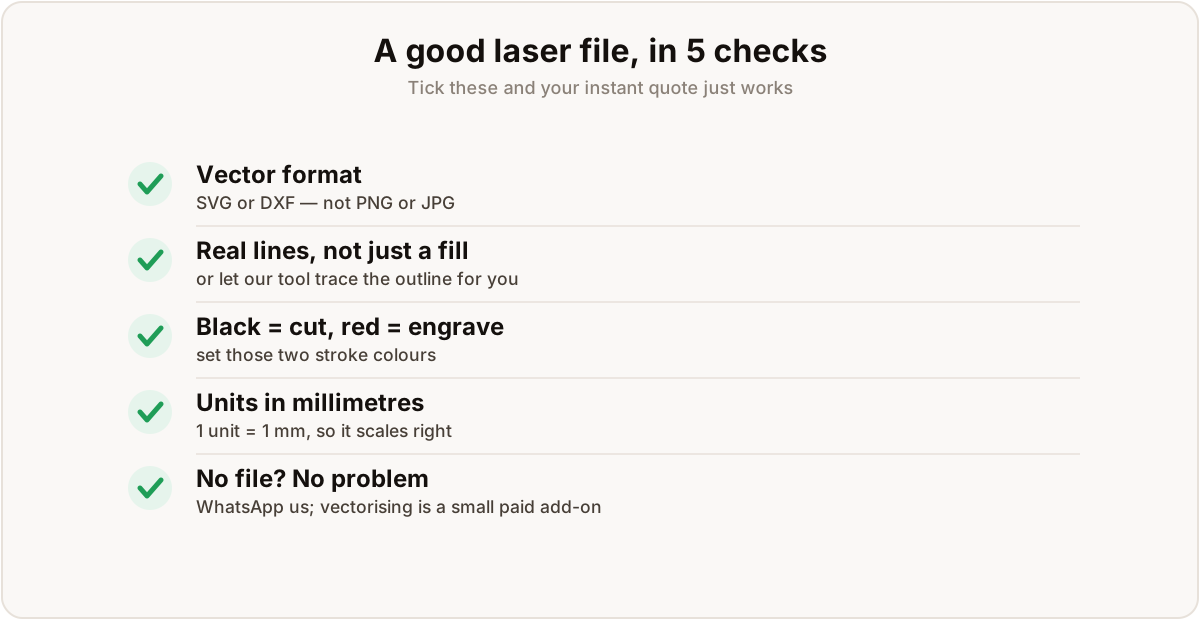
A good file, in five checks
No vector? Send us the logo
Plenty of jobs start as an old logo with no source file in sight. Totally normal.
WhatsApp it to +65 8923 2984 with a note on what you want made, and we’ll quote it manually. Want a reusable cut file? Vectorising is a small add-on: we redraw your artwork as clean outlines so it cuts crisply and you can reorder any time. We’ll price it with your quote.
Want the full rundown of materials, thicknesses and finishes? See our laser engraving and cutting page.
Frequently asked
What file format do I need for an instant laser-cutting quote?
A vector file: SVG or DXF, drawn at 1 unit = 1 mm. Vector files store your design as lines and curves, which is exactly the path the laser head follows. Our instant-quote tool reads those paths, measures the cut length, and prices it on the spot. AI and PDF also work if they hold real vector geometry.
Can you cut a part from a PNG or JPG?
Not directly. PNG, JPG, screenshots and photos are raster: a grid of pixels with no lines to follow, so the laser can't cut a clean edge from them. We can engrave a raster image as shaded artwork, or trace it into vector first (a small manual step). For a cut outline, send a vector file or ask us to vectorise your logo.
What do the black and red lines mean in my file?
It's the convention our tool expects. Black strokes (outlines) are read as cuts: the laser cuts all the way through. Red strokes are read as engrave: the laser scores or marks the surface without cutting through. Set your line colours that way and the quote comes back already split into cut and engrave.
I only have a logo image and no vector file. What now?
Send it to us on WhatsApp at +65 8923 2984 and we'll quote it manually. If you'd like it as a reusable cut file, we can vectorise it for you, redraw the artwork as clean outlines so it cuts crisply and you can reorder any time.
Related